Connect ArakYet with Your CRM
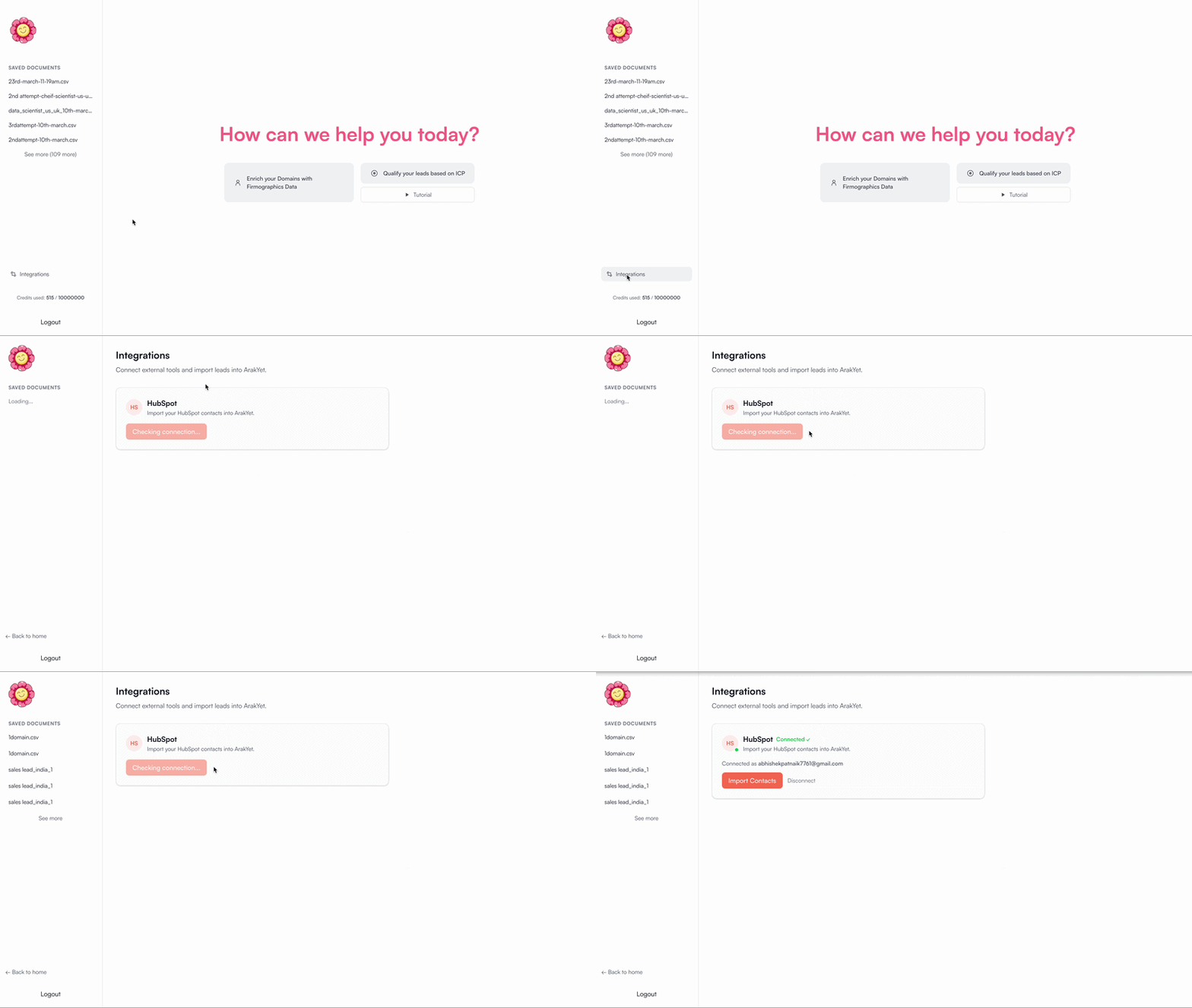
Open the Integrations Tab
From your ArakYet dashboard, locate the Integrations option in the left sidebar. Clicking it opens the integrations panel where all available CRM and outreach tool connections are listed.
Find This CRM from the list and click on it to begin the connection flow.
Authenticate Easily
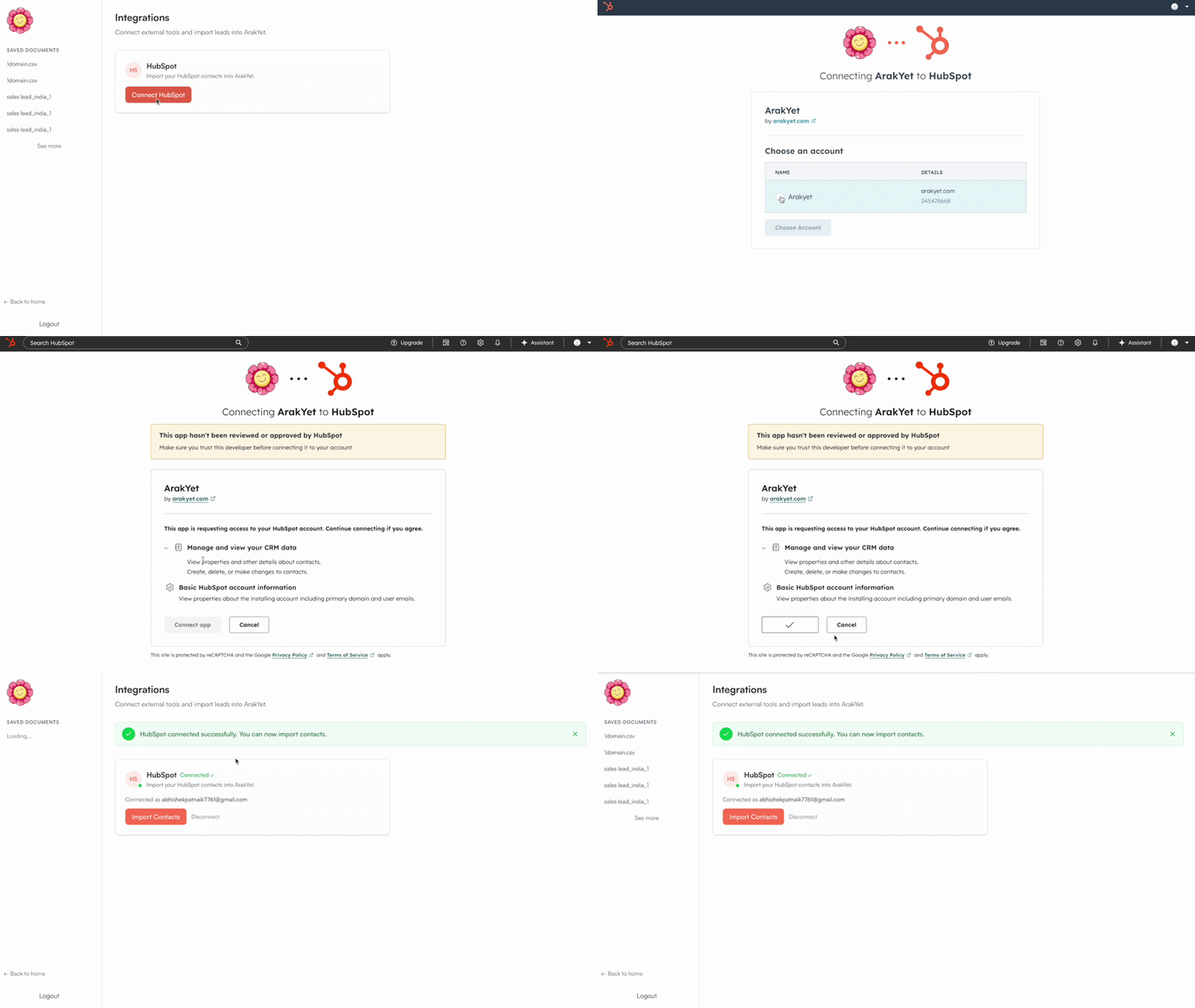
You'll be redirected to the OAuth authorization page. Sign in with the account that holds the portal you want to connect, then grant ArakYet the permissions needed to read and write contact data.
Make sure you're logged into the correct account before authorizing. ArakYet only requests the minimum permissions needed — contact read/write access.
This opens the secure OAuth flow. Do not close the window during this process.
If you manage multiple portals, select the one you want to sync leads into.
Review the permissions and click Grant Access to complete authentication.
Authentication is complete. You'll land on a confirmation screen showing your connection status.
Choose Your Action
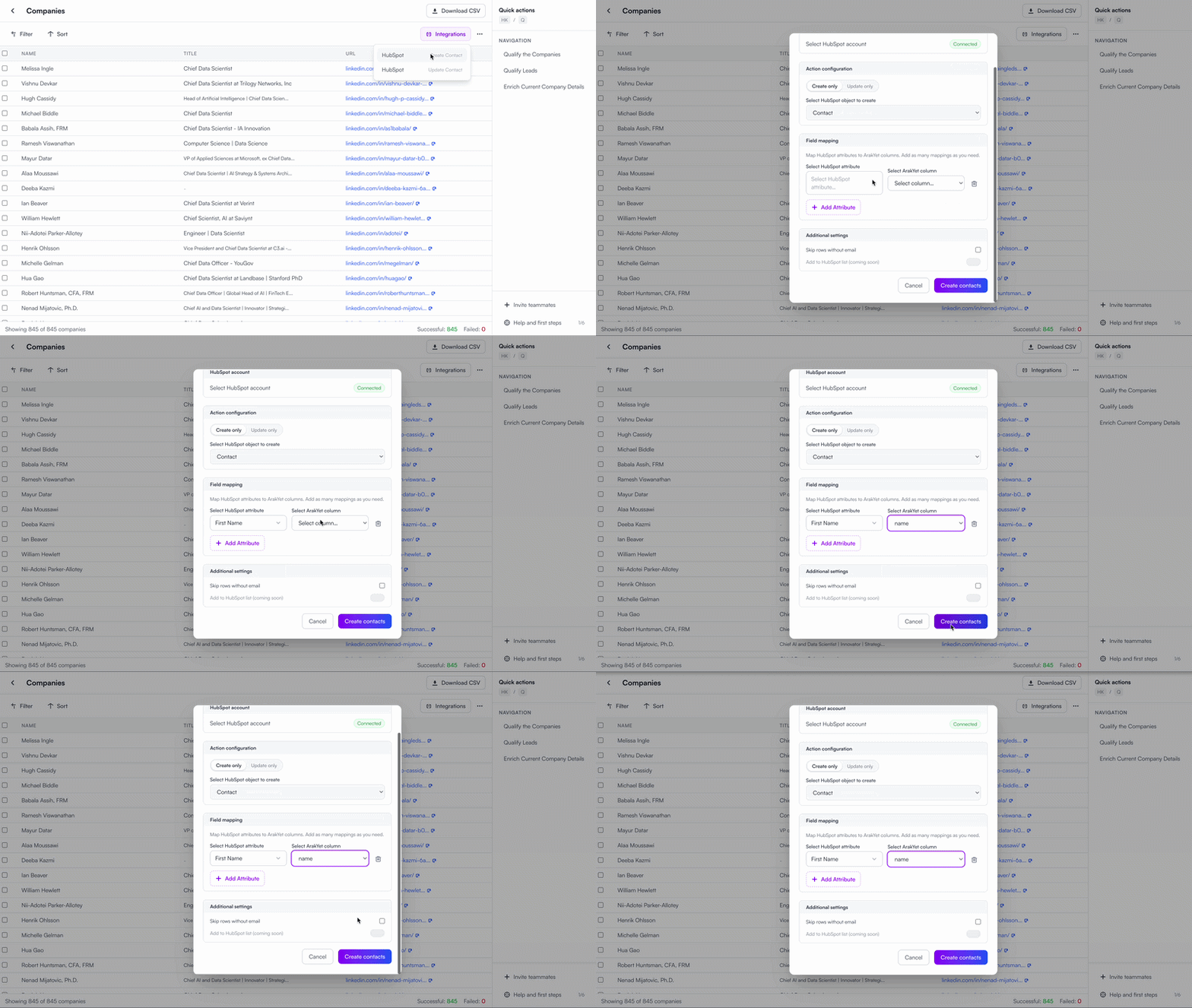
Once connected, you'll see two available actions. Choose based on whether your leads already exist in the CRM or not:
Create New Contacts
Upload a CSV and map columns to CRM attributes. ArakYet creates a fresh contact record for each row in your file.
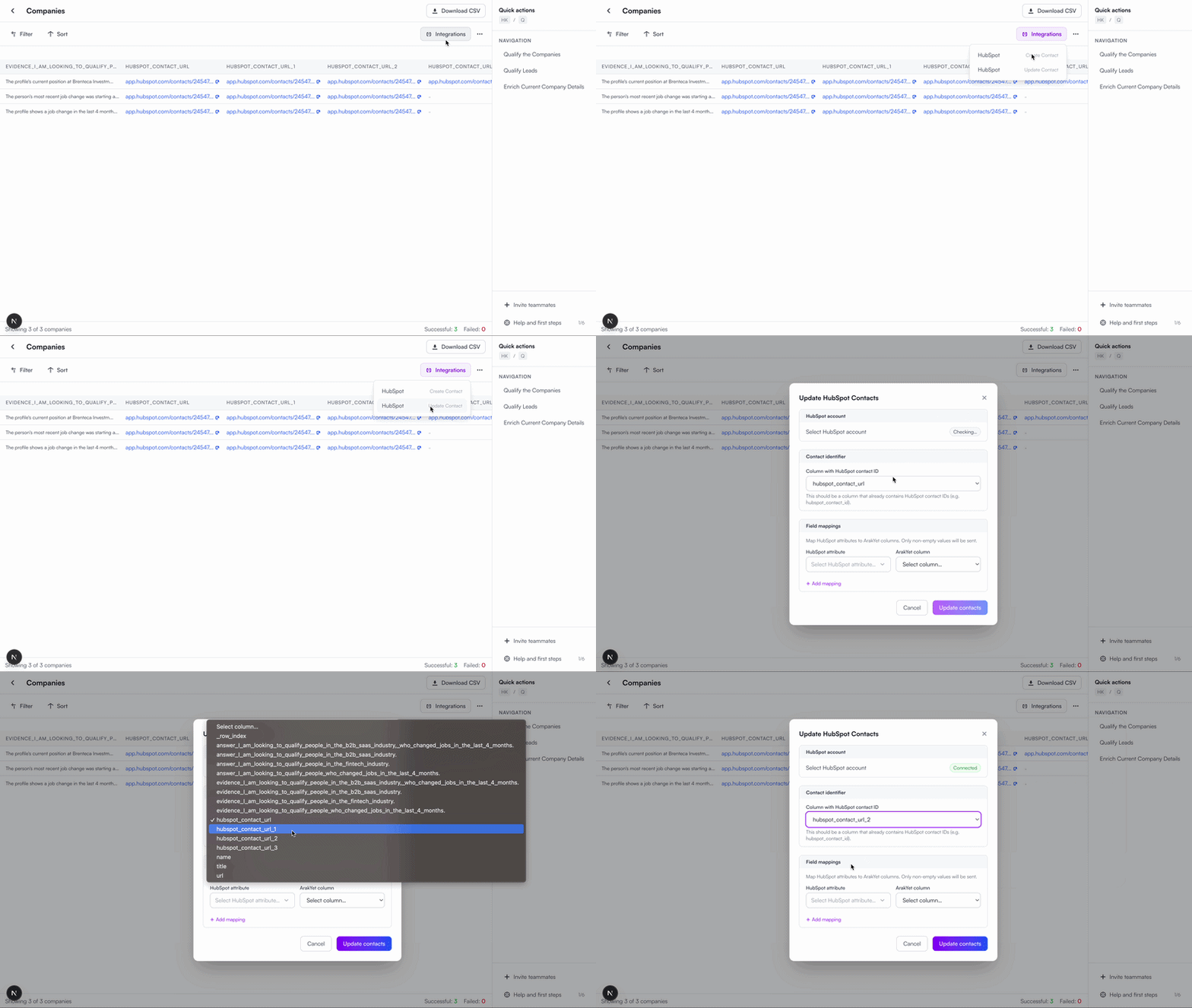
Update Existing Contacts
Update fields on contacts already in the CRM. Requires a CRM Contact ID column in your CSV.
Creating New Contacts
Use this when your leads don't yet exist as contacts in the CRM. ArakYet will create a new record for each row in your uploaded file.
1. Upload your CSV
Click Upload CSV and select your qualified lead file. The file must have column headers in the first row.
2. Map columns to CRM attributes
ArakYet displays your CSV column names on the left. Map each one to the corresponding CRM property on the right.
| Your CSV Column | CRM Attribute | Required |
|---|---|---|
| Email Address | Optional | |
| first_name | First Name | Optional |
| last_name | Last Name | Optional |
| company | Company Name | Optional |
| arakyet_score | Lead Score (Custom) | Optional |
Email address is the minimum required field to create a contact in the CRM. All other fields are optional but recommended for richer records.
3. Click "Create Contacts"
ArakYet pushes each row as a new contact into your CRM portal. A progress indicator shows how many records have been created in real time.
Updating Existing Contacts
Use this when contacts already exist in the CRM and you want to update their properties — for example, adding ArakYet qualification scores, new job titles, or company signals.
Contacts must already be saved or imported into the CRM before using the Update flow. If a contact doesn't exist yet, use Create Contact first.
1. Upload your CSV
Your CSV must include a column containing the CRM Contact ID for each row. This is how ArakYet identifies which existing record to update.
crm_id, email, arakyet_score, job_title
12345678, [email protected], 91, VP of Sales
87654321, [email protected], 74, Head of Growth
2. Select the CRM ID column
From the column mapping screen, designate which column in your CSV contains the CRM Contact ID. ArakYet uses this as the unique identifier to match each row to the right record.
3. Map remaining columns
Map any other columns you want to update — scores, intent signals, job changes, or any custom CRM property in your portal.
4. Click "Update Contacts"
ArakYet finds each contact by their ID and updates only the fields you've mapped. All existing fields that aren't mapped remain completely untouched.
Don't know your CRM Contact IDs? Export contacts from the CRM — the export file includes a Record ID column by default. Use that column in ArakYet.
Troubleshooting
Make sure you're a Super Admin or have App Marketplace access in your account. Standard users may not have permission to authorize third-party apps.
Check that your CSV's email column is correctly mapped to the CRM Email Address field — this is required for every new contact. Also verify there are no duplicate emails in your file.
The CRM Contact ID in your CSV may be incorrect or mapped to the wrong column. Confirm that you're using the CRM Record ID value for each contact.